Master Python REPL for Efficient Machine Learning Development
When you are working with machine learning projects, you often need to try out small pieces of code very quickly. You might need to check how a certain data point looks, or if a small part of your program works the way you think it does.

This is where the Python REPL comes in very handy.
REPL stands for Read-Eval-Print Loop. It is a simple tool where you type Python code, the computer runs it right away, and then shows you the answer. This happens in a loop: you type, it runs, it shows, and then it waits for you to type again. It is like having a direct chat with your Python program. You can start a standard Python REPL by simply typing python in your computer’s command line. This gives you an interactive shell that is included with every Python setup, allowing you to quickly try out ideas and get instant feedback Python REPL: A Hands-On Guide to Interactive Coding – DataCamp.
For machine learning teams, the Python REPL is super important for two main things:
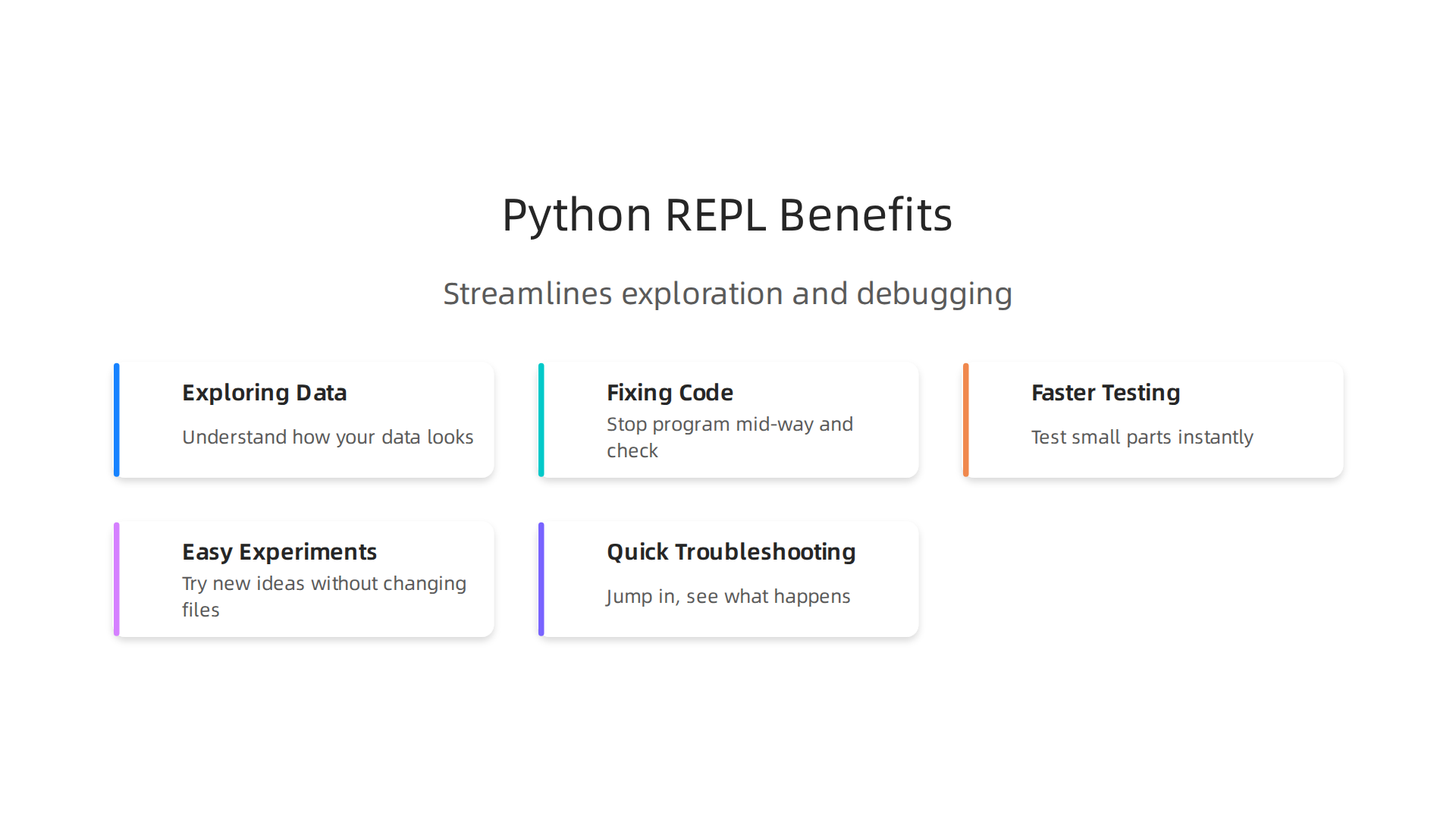
- Exploring Data: When you are looking at new data, you need to understand it. You might want to see the
python typeof a column, check a few rows, or run a simple calculation. The REPL lets you do this fast. You do not have to write a whole script and run it every time. You can just typeprint(my_data.head())ormy_data['age'].mean()and see the results right away. This quick back-and-forth helps you explore your data and understand what it is telling you, which is a key part of exploratory data analysis techniques for machine learning in 2026. - Fixing Code (Debugging): Sometimes your code has a bug. Maybe a
python loopsis not working as expected, or anor in pythoncondition is giving the wrong result. The REPL lets you stop your program mid-way and check things. You can look at the values of your variables, try out small fixes, and step through your code line by line. Python even has a special debugger calledpdbthat works in a similar interactive way, letting you find problems fast Python Debugging With Pdb.
Many machine learning professionals face problems like their code running too slowly, or not being able to repeat small tests easily. The REPL helps solve these:
- Faster Testing: Instead of waiting for a big program to run, you can test small parts instantly. This makes your work much faster.
- Easy Experiments: You can quickly try new ideas without changing your main project files. This helps you figure out if a new approach might work before you commit to it.
- Quick Troubleshooting: When something goes wrong, the REPL lets you jump in and see exactly what is happening, helping you find and fix errors without much delay.
In 2026, even with advanced tools, the simple, direct feedback of the python repl remains a powerful ally for ML teams. It helps ensure that from the smallest python type check to fixing complex python loops, development stays efficient and effective.
To stay ahead of the curve in the fast-moving world of AI and machine learning, you need daily, clear updates.
The AI Newsletter Worth Reading
Even with many fancy tools available in 2026, the python repl remains a simple yet powerful friend for machine learning teams. It has some core features that make it super helpful for working with code and data. Knowing these features can make your work much smoother.
What Makes the REPL So Useful
Here are some key parts of the Python REPL that every ML engineer should know:
- Keeping Track of History: The REPL remembers the commands you typed before. This means you can easily go back to a previous command, change a small part, and run it again. It saves you from typing the same long lines of code over and over.
- Looking Inside Objects (Introspection): When you’re working with data or code, you often need to know what something "is." For example, what
python typeis a variable holding? What functions can an object do? The REPL lets you easily check these things. You can typehelp(my_object)ordir(my_object)to see its details right away. This is like looking at the blueprint of your code parts. Python’s built-in inspect module helps you get information about live objects in the REPL, like modules, classes, and functions. - Checking Live Data (Live Object Inspection): This is closely tied to introspection. In machine learning, you’re always dealing with actual data. The REPL lets you look at your data objects as they are right now in your program. You can see their values, check how they changed after a step, or even change them temporarily to see what happens.
- Quick Changes (Hot-Reloading and Inline Evaluation): While not a full "hot-reloading" in the sense of a big application, the REPL offers something similar for small tests. You can quickly type a new line of code or a small change and run it instantly. This "inline evaluation" means you don’t have to restart your whole script to test a tiny adjustment. You see the effect immediately. This is great for quickly trying out different ideas or fixing a small part of a
python loopsor anor in pythoncondition.
Built-in Modules for Deeper Work
Python comes with special tools that work great with the REPL to help you dig deeper:
- The
pdbDebugger: We talked aboutpdbbefore. It’s Python’s own interactive debugger. When your code stops because of an error or at a breakpoint you set,pdbopens up a special REPL session. In this session, you can look at the values of all your variables, step through your code line by line, and even change things to test a fix. This makes finding and fixing bugs much easier and faster, turning a frustrating problem into a quick check-and-solve task Python Debugger: Comprehensive Guide. - The
inspectModule: This module is perfect for the "looking inside objects" feature mentioned earlier. It provides many functions to get information about live objects in your program. For example, you can use it to find the source code of a function or to list all the members of a class. This helps you understand how different parts of your machine learning code are put together.
Using these core features and modules with the python repl helps ML engineers quickly understand their code and data, test new ideas, and fix problems fast. It’s a key part of mastering your Python stack for data science in 2026 and building production ML systems with advanced Python for teams.
Using the pdb debugger and the inspect module, as we discussed, helps a lot. But how do you actually use the python repl in smart ways to find and fix problems? It’s all about interactive debugging, where you talk to your code as it runs.
Interactive Debugging Techniques: Breakpoint-Driven, REPL-in-Loop, and State Inspection
Debugging with the python repl is like being a detective for your code.
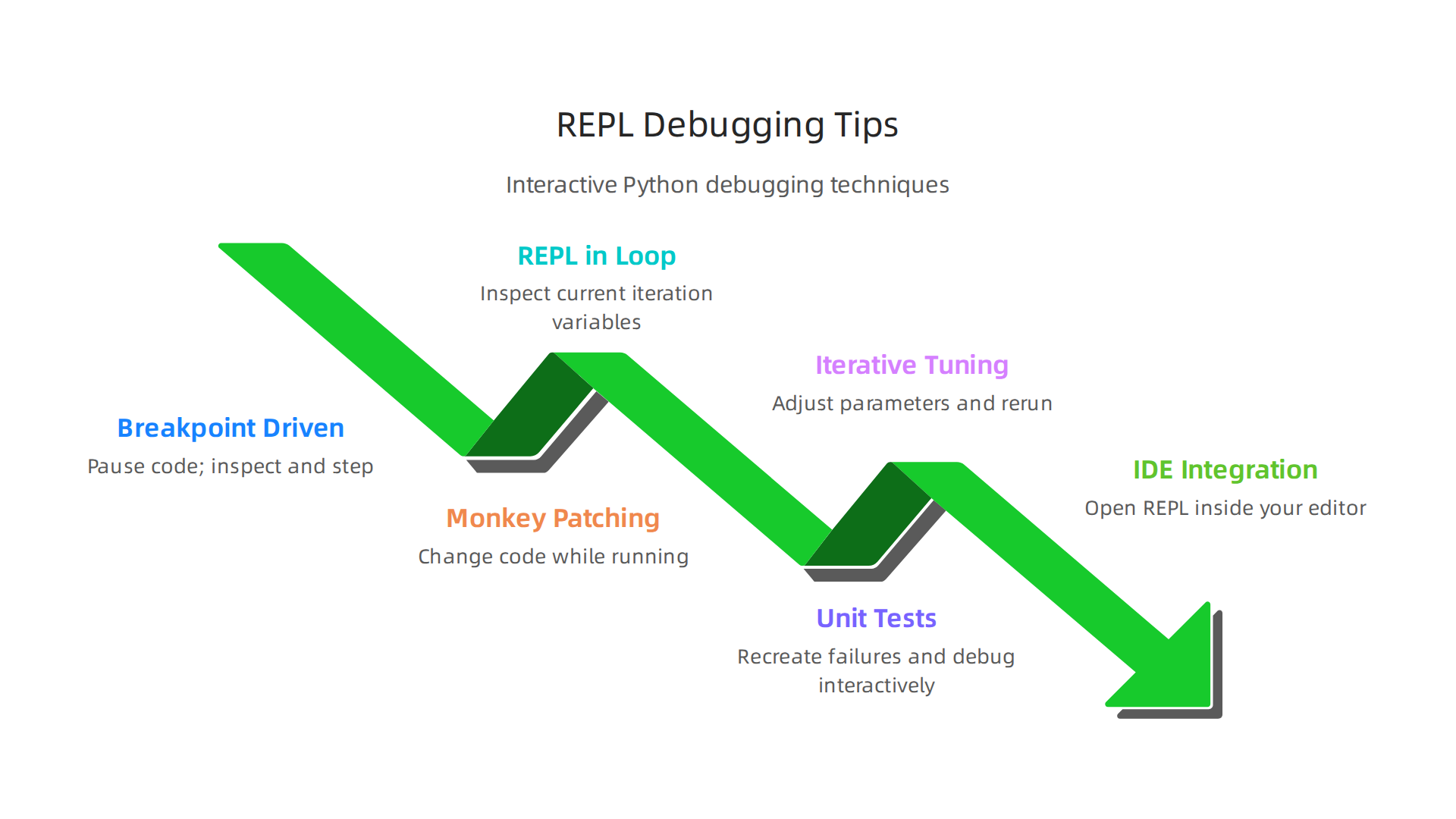

You pause your program at important spots, look around, and sometimes even change things to see what happens.
Using Breakpoints to Pause and Look Around
A breakpoint is like pressing the "pause" button on your code. When your program hits a breakpoint, it stops, and you get a python repl session right there. This is often done using pdb.
- Set and Inspect Breakpoints: You place a breakpoint in your code (for example, by adding
import pdb; pdb.set_trace()). When your program reaches this line, it will stop. You can then use the interactivepython replto:- Inspect State: Look at the values of all your variables. What
python typeis a certain variable? Has a number changed the way you expected? This is super helpful for understanding how data flows through your program. - Step Through Code: You can tell
pdbto run the next line, or step into a function, or even skip ahead. This helps you follow the exact path your code takes. - Change Variables: Sometimes you want to test a "what if" scenario. In
pdb‘s REPL, you can actually change the value of a variable and then let the program continue. This is a powerful way to test quick fixes.
- Inspect State: Look at the values of all your variables. What
REPL-in-Loop for Deeper Insights
When you have python loops or complicated conditions (like using or in python), it can be hard to see exactly what’s going on inside each cycle.
- Dropping into a REPL Mid-Loop: You can place a breakpoint inside a loop. Each time the loop runs and hits the breakpoint, you get a fresh REPL session. This lets you inspect the current iteration’s variables, which is great for catching tricky bugs that only show up under specific conditions in a loop. You can observe how your data transforms step by step.
Monkey-Patching Functions at Runtime
This sounds complex, but it’s a simple idea for quick testing. "Monkey-patching" means changing a small part of your code while it’s already running in the REPL.
- Imagine you have a function that loads data, and you think it might be causing a problem. You can quickly define a simpler, temporary version of that function right in your
python repl. Your running program will then use your new, temporary function instead of the original. This lets you test a fix or a new idea without restarting your whole application. It’s a fast way to try things out when you’re mastering Python variables and their effects.
Iterative Parameter Tuning
For machine learning tasks, you often need to try different settings or "parameters" for your models. The python repl makes this very fast.
- You can run a small piece of your model’s code in the REPL.
- Check the results.
- Then, change one parameter value in the REPL.
- Run that small piece of code again immediately to see if the change made things better.
This rapid feedback loop is perfect for finding the best settings for your models, especially when working with guide to Python machine learning libraries.
Combining REPL Sessions with Other Tools
The python repl doesn’t work alone. It’s a great friend to other parts of your workflow:
- With Unit Tests: If a unit test fails, you can use the REPL to recreate the problem and debug it interactively. Once you find the fix, you put it back into your code and re-run the test.
- With Small Scripts: For new features, you can often write a small script and use the REPL to test each part of it. This helps you build solid code before you integrate it into a larger system.
- Integrated REPLs in IDEs: Many coding tools like Visual Studio Code offer built-in REPLs. You can open a
python replright in your editor and send code to it easily. For example, in VS Code, you can use the "Python: Start REPL" command to get an interactive terminal for your chosen Python version, making debugging even smoother Start REPL command in VS Code. This helps you quickly test parts of your code without leaving your main workspace.
While the standard python repl and its basic features are helpful for quick checks and debugging, as we just talked about, sometimes you need more power. The regular Python shell is pretty simple. It does not offer many fancy features like smart suggestions or easy ways to look at your code’s insides, especially when dealing with complex python loops or trying to understand a variable’s python type Custom Python shells – ipython, bpython, ptpython, and so …. This is where advanced tools like IPython, ptpython, and bpython come in. These are "enhanced shells" that make working with Python much easier.
Comparing Advanced REPL Tools: IPython, ptpython, bpython and Enhanced Shells
Imagine your basic python repl is a simple calculator. These advanced tools are like a smart computer that helps you do math, see your work clearly, and even guess what you want to type next. They offer features that speed up your coding and make debugging less of a headache.
Let’s look at some popular options:
IPython: The Powerhouse
IPython is a very powerful upgrade to the regular python repl. It’s known for making your work much smoother.
- Colorized Text: It uses different colors for your code and error messages. This helps you quickly see if you forgot a quote or typed something wrong, making it easier to spot issues.
- Autocompletion: IPython can guess what you want to type. If you start typing a variable name or a function, it will offer suggestions so you don’t have to type everything out. This is a big time-saver! 4 Alternatives to the Standard Interactive Python Shell.
- Magic Commands: IPython has special commands that start with
%(like%timeitto measure how fast your code runs). These commands let you do powerful things quickly, like run shell commands or plot graphs right in your shell. - Embeddability: You can put IPython inside other programs, which is great for tools that need an interactive Python part.
- For Machine Learning: IPython is widely used in machine learning because it works well with scientific libraries and helps handle complex tasks. It’s often bundled with Jupyter Notebooks, which are essential for many machine learning workflows.
bpython: Lightweight and Smart
bpython is another choice that focuses on a good interactive experience without being too heavy.
- Syntax Highlighting: Just like IPython, bpython colors your code as you type, helping you see things more clearly A better Python REPL: bpython vs python.
- Autocompletion with Suggestions: It provides smart suggestions as you type, showing you possible completions for variables and functions.
- Parameter List: When you’re using a function, bpython can show you what information the function needs (its parameters). This is helpful when you’re trying to remember how to use a specific function or exploring a new library.
- Simpler but Effective: Some people find bpython to be a good middle ground, offering a lot of helpful features without the extra layers that IPython might have Review of bpython and DreamPie (alternative Python shells).
ptpython: Highly Customizable
ptpython is a modern python repl that takes user control to the next level.
- Advanced Highlighting and Completion: It offers top-notch code and syntax highlighting, along with very smart autocompletion features that go beyond the basic Python shell Boost Your Coding Productivity With Ptpython.
- Multiline Editing: When you’re typing longer pieces of code, like a function or
python loops, ptpython makes it easy to edit multiple lines at once. The standard Python shell can be tricky for this. - Custom Keybinds and Themes: You can change how ptpython works and looks, setting your own keyboard shortcuts and color schemes. This makes it feel more personal and efficient.
- Combined Modes: One neat thing is that ptpython can even include IPython’s features if you need them, giving you the best of both worlds Why ptpython is the only REPL you will ever need.
Choosing the right python repl often depends on your needs. For heavy data science or machine learning tasks, IPython’s ecosystem and magic commands are very strong. If you want a fast, feature-rich shell that’s easy to customize, ptpython might be your pick. And if you prefer something lighter but still much better than the basic Python shell, bpython is a solid choice. All of these tools greatly improve the experience of interactive coding and debugging, helping you understand your code and its data much better, whether you are dealing with a simple number or a complex data structure. For more on preparing data for machine learning, you might want to read about secondary data analysis for machine learning boost performance cut costs.
Here is a quick look at how these enhanced shells compare:
| Feature | IPython | bpython | ptpython |
|---|---|---|---|
| Colorized Input/Errors | Yes | Yes | Yes |
| Autocompletion | Smart, tab-based | As-you-type suggestions | Advanced, context-aware |
| Multiline Editing | Yes, block editing | Good, auto-indenting | Excellent, easy block editing |
| Syntax Highlighting | Yes | Yes | Yes |
| Magic Commands | Yes (e.g., %timeit, %run) |
No | No (but can run IPython in ptipython mode) |
| Parameter Display | Yes | Yes | Yes |
| Custom Keybinds/Themes | Some customization | Some customization | Extensive |
| ML Integration | Very strong, widely used with Jupyter | Good for general Python development | Good for general Python development |
In 2026, many developers choose one of these enhanced python repl options because they greatly improve speed and ease of use. They are especially helpful when you are working on complex projects like machine learning, where quick feedback and clear views of your code’s state are key to success.
Using advanced python repl tools like IPython makes your coding faster. But what if you need to do more than just quick checks? Many times, you want to combine the quick feedback of a REPL with the bigger picture of a full coding project. This is where mixing REPLs with code editors and notebooks becomes super helpful. It lets you work in different ways to solve problems and build your projects.
Integrating REPLs with Editors and Notebooks: A Hybrid Approach
Think of it like this: your advanced python repl is great for trying out small code snippets or checking a python type of a variable quickly. But when you are building a larger program with many python loops or functions, you want to write your code in a file and save it. That’s where tools like Jupyter notebooks and special windows in editors like VS Code come in handy.
Jupyter Notebooks: Code, Text, and Results in One Place
Jupyter notebooks are very popular, especially for data science and machine learning. They use the power of IPython. A notebook lets you write code, add notes in plain English, and see the results (like graphs or data tables) all in one document.
- Interactive Cells: You write your Python code in "cells." You can run one cell at a time, see the output right there, and then change it or add more code. This is like a REPL, but much more organized.
- Easy Sharing: Because notebooks combine code, notes, and results, they are great for sharing your work with others. They can see exactly what you did and why.
- Mixing Modes: You can use a Jupyter notebook for big tasks, and still jump into a regular IPython
python replif you need to test a quick idea or debug a small part of your code. If you’re focusing on machine learning, understanding how to use these tools effectively is key to improving your workflow and speeding up model delivery.
VS Code Interactive Window: A REPL in Your Editor
Many coders use Visual Studio Code (VS Code) as their main editor in 2026. It has great tools for Python. One of these is the Interactive Window. It feels a lot like a Jupyter notebook but is built right into your editor.
- Run Code from Files: You can write your Python code in a
.pyfile, then send parts of it (like a single line or a whole block) to the Interactive Window to run. This lets you test your code piece by piece without leaving your editor. For example, you can select code and use a command to send selected text to IPython. - Jupyter Kernel Support: The VS Code Interactive Window often uses Jupyter kernels (the part that runs the code), giving you the benefits of IPython’s power. You might need to install the Jupyter extension for VS Code to get all these features.
- Fast Feedback: Like a
python repl, it gives you quick feedback on your code. You can easily see variable values or how yourpython loopsare working. VS Code even added better shell integration for Python in 2025, making thepython replexperience even richer Python in Visual Studio Code – August 2025 Release.
Keeping Experiments Reproducible
When you switch between quick REPL sessions and longer notebook or editor workflows, it’s important to keep your work consistent. This is called "reproducibility." It means someone else (or even you later) can run your code and get the exact same results.
- Save Your Steps: Always save your code in
.pyfiles or Jupyter notebooks. Do not just rely on what you did in a livepython replsession, because those changes usually disappear when you close it. - Clear Setup: Make sure your code clearly shows all the steps. This includes how you set up your variables, import libraries, or handle data.
- Use Version Control: Tools like Git help you keep track of changes to your code. If you make a mistake, you can go back to an earlier version. This is very important when you are working on complex data tasks or
python loopsthat might change over time. For more on structuring projects for consistency, check out our guide on reliably run Python code in production for machine learning systems.
By using these hybrid approaches, you get the best of both worlds: the speed of interactive coding and the organization of a full development environment. This makes your Python work, especially for data science and machine learning, much more efficient and reliable.
Remote debugging and REPLs: containers, SSH, and secure access patterns
Sometimes, your code does not run on your own computer. It might be in a special box called a Docker container, on another computer far away (a remote VM), or in a big group of computers (a managed cluster). When this happens, you still need a way to check your code and fix problems. This is where using a python repl for remote debugging becomes very important. It helps you see what your code is doing inside these far-off places.
Using REPLs in Docker Containers
Docker containers are like small, neat packages for your code and everything it needs to run. But if something goes wrong inside, how do you look? You can set up your container so you can connect to it with SSH (Secure Shell). SSH is like a secure phone line to another computer. Once connected, you can open a python repl right inside the container.
To do this, you might need to add an SSH server to your container’s setup. You also need to tell Docker to let your computer talk to the container on a specific "port" or number, like forwarding local port 8022 to port 22 in the container for SSH access Running an SSH server in a Docker image as a debugging mode. You might also need to map ports for debugging itself, often using port 5678, so your local tools can connect to the debugger inside the container Containerized Python Development – Part 3 – Docker.
Tools like VS Code can connect directly to a remote container through SSH. This lets you write code on your computer but run and debug it as if you were right inside the container Configuring Remote Python Debugging in VSCode. You can send parts of your Python code, like a specific python type check or a python loops section, to an interactive window connected to the container. This gives you quick feedback just like a local python repl. If you are building big machine learning systems, knowing how to do this is a must to build production ML systems with advanced Python for teams.
Working with Remote VMs and Clusters
Beyond Docker, you might have code on a virtual machine (VM) in the cloud or a large cluster. For these, SSH is still your best friend. You can use SSH to connect to these remote machines and run a python repl session there directly. Most coding tools in 2026 have ways to connect and debug over SSH, letting you look at your code’s behavior on the remote server Debugging over SSH. This way, you can test your or in python logic or check variable values right where your code is actually running.
Avoiding Common Problems
When you work remotely, some tricky things can come up:
-
Different Code Environments: Your local computer might have different software versions or libraries than the remote server. This is called "dependency mismatch." Your code might work perfectly on your machine but break remotely. Always make sure your remote environment is exactly like your local one, or use tools like Docker to keep things consistent.
-
Environment Drift: Over time, your remote setup might change. Someone might install a new library or update a setting. This "drift" can cause unexpected problems. Keeping good notes and using tools that automatically set up your environment can help.
-
Handling Secrets Safely: Your code often needs special "secrets" like passwords, API keys, or security tokens to work. These should never be put directly into your code files or container images. Why? Because they could be seen by others. This is a big security risk. Instead, use secure methods.
In 2026, it is standard practice to use "file-based secrets" where sensitive information is stored in special files with very strict access rules. Or, use Docker’s built-in "Docker Secrets" feature, which helps manage these securely Docker Secrets Explained: Setup, Best Practices & Examples – Wiz. These methods keep your secrets safe by putting them into your container only when it runs, and they are not saved in the image itself Docker Secrets in Production: Stop Putting API Keys in …. Never embed them in images or code [Secrets: write-up best practices, do’s and don’ts, roadmap #13490].
By understanding these remote tools and being careful with security, you can use the power of a python repl to debug and explore your code no matter where it lives. This makes your coding more flexible and safe, especially as you master your Python stack for data science in 2026.
Best practices and team workflows for interactive development in ML projects
It’s great to know how to fix problems in your code by yourself, especially when it’s running far away in a container. But when you work with a team on machine learning (ML) projects, you need to have good ways of working together. This means making sure everyone can understand, use, and build upon the work done using tools like a python repl.
Saving Your Work from Interactive Sessions
A python repl is fantastic for trying out new ideas quickly. You might test a small piece of code, check a python type for a variable, or see how python loops behave with different data. But if you don’t save these tests, your team might miss out on what you learned.
For team projects, it’s a good idea to:
- Document Your Explorations: Keep notes about what you tried in your
python replsession. What worked? What didn’t? Why? - Capture Experiments: If you find something interesting or a new way to solve a problem, save the code you used. Tools like Jupyter notebooks are great for this because they let you mix code, results, and notes all in one place. This helps make your work "reproducible," meaning others can get the same results if they follow your steps Reproducible Research. Being able to trace everything from start to finish is key for data science Reproducible Workflows – Data Science Lessons.
Turning REPL Ideas into Real Code
The insights you gain from a python repl are valuable. The next step is to turn these interactive ideas into stable code that can be used in your main project.
- Write Tests for Your Discoveries: If you figure out a clever
or in pythonlogic or a new way to handle data, write a small test for it. This makes sure your idea works correctly every time, not just during your interactive session. Many experts suggest writing tests after you’ve explored and found what works in yourpython replREPL-based Workflow and Unit Testing. - Build into Pipelines: For bigger ML projects, you’ll often have "pipelines" that move data and run your models step-by-step. Take the working code from your
python replsessions and fit it into these pipelines. This helps you reliably run Python code in production for machine learning systems.
Helping Your Team Work Better
Good team practices help everyone. When new people join, or when you review each other’s code, thinking about interactive development is important.
- Onboarding: Teach new team members how you use
python repls for exploration and how to document their findings. Show them how to turn their interactive work into tests and production-ready code. Using clear project structures, like those suggested for cookiecutter data science project structure for reproducible ML, can make this easier. - Code Review: When reviewing code, don’t just look at the final product. Ask about the journey. "What interactive sessions led to this solution?" This helps catch problems early and shares knowledge among the team.
Balancing Exploration and Production Code
It’s a balance. python repls are fantastic for quick learning and trying new things. But when it’s time for the code to work perfectly for users, it needs to be well-structured, tested, and clear. Encourage your team to explore freely but also to put in the work to make their discoveries solid and production-ready.
Keeping up with the latest in AI and machine learning can be a lot. For more insights and daily updates on what’s happening, consider subscribing to a dedicated newsletter.
Get clear daily AI updates from The AI Newsletter Worth Reading.
Summary
This article explains how the Python REPL (Read‑Eval‑Print Loop) is a fast, practical tool for machine learning teams to explore data, test ideas, and debug code interactively. It covers core REPL benefits—quick data checks, iterative experiments, and faster troubleshooting—plus useful features like command history, introspection, live object inspection, and inline evaluation. You’ll learn concrete interactive debugging techniques (breakpoints, REPL‑in‑loop, monkey‑patching, iterative parameter tuning) and how to use built‑in tools such as pdb and inspect to inspect state and fix bugs. The guide compares enhanced shells (IPython, bpython, ptpython), shows how to mix REPLs with Jupyter and editor interactive windows, and explains remote debugging patterns for Docker and SSH. Finally, it outlines team best practices for capturing REPL work, turning experiments into tests and pipelines, and keeping workflows reproducible and secure. By the end you’ll know when to drop into a REPL, which enhanced shell fits your needs, and how to integrate interactive sessions into production‑ready ML workflows.