
Master the Python Path for Reliable Machine Learning Systems

Why the Python path matters for ML engineers and teams
Imagine you have a big pile of toy blocks, and you need to find a special one to finish building your castle. If all the blocks are in one messy box, it’s hard to find the right one. But if they are neatly put into different labeled boxes, finding the right block is easy. This is a bit like how Python finds the code it needs.
The "Python path" is like a treasure map for your Python programs. It tells Python exactly where to look for important pieces of code, called "modules," when you tell it to import them. These modules can be tools you wrote, or tools made by others that help you with machine learning (ML) tasks. Python keeps this map in a special list called sys.path where it stores all the folder names it will search through to find your modules. This list includes your current working folder, special folders you set up, and where Python usually keeps its own files How to locate Python module paths.
For ML engineers and teams in 2026, understanding this python path is super important.
idual focused on understanding a complex technical diagram or concept.](https://machinelearningnewstoday.com/wp-content/uploads/2026/08/weblish-inline-117947.jpg)

Here’s why:
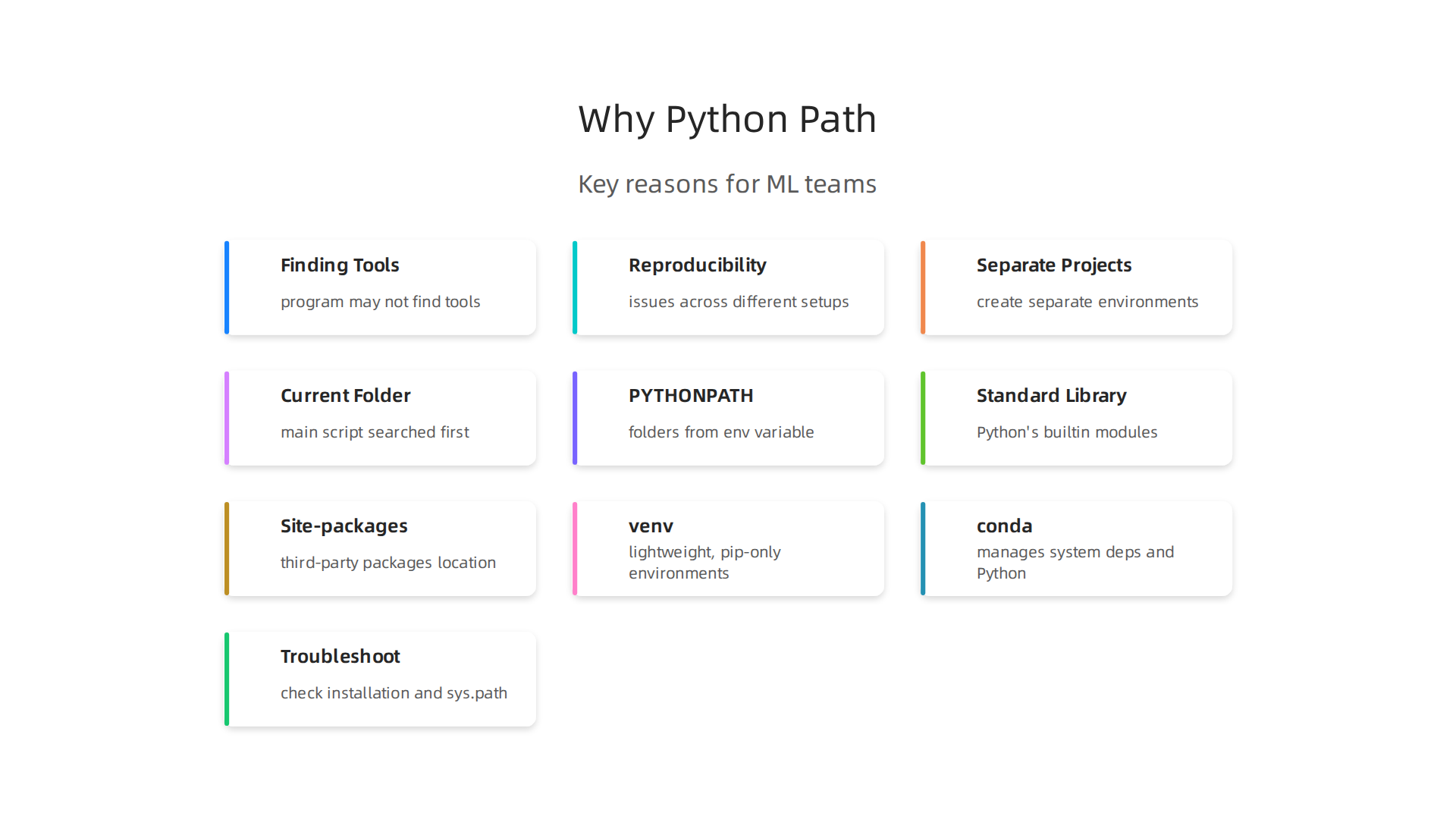
- Finding the Right Tools: If the
python pathisn’t set up correctly, your ML program might not find the tools it needs. It could look in the wrong place or use an older version of a tool, leading to errors. This impacts your ability to reliably run python code in production for machine learning systems. - Making Code Work Everywhere: ML teams often work on projects that need to run on different computers or servers. If everyone has a slightly different
python path, the same code might act differently. This makes it hard to be sure your ML models will work the same way for everyone, a problem called "reproducibility." Think of it as everyone having a different treasure map leading to slightly different treasures. - Keeping Projects Separate: When you work on many ML projects, you might need different versions of the same tool for each project. The
python pathhelps create special, separate workspaces called "environments." This means Project A won’t accidentally use a tool from Project B, avoiding confusing bugs.
Sometimes, ML teams run into tricky problems because of the python path. For example, your code might work perfectly on your computer but fail when it’s moved to a server. This often happens because the server’s python path is different, and it can’t find the necessary modules or finds the wrong ones How to locate a particular module in Python?. These subtle bugs can be very hard to find and fix, wasting valuable time and slowing down your progress. Knowing how to check and change your python path can save a lot of headaches and help you master your python stack for data science in 2026.
Staying updated on such technical insights and broader AI trends is key for any ML professional.
Get clear daily AI updates from The AI Newsletter Worth Reading.
The ‘python path’ is much like the set of rules your computer uses to find programs, but specifically for Python code. When you run a Python program, it needs to find all the extra code bits, or "modules," that it uses. The Python path tells it where to look. Let’s break down the key parts of this important idea.
sys.path: Python’s Internal Treasure Map
Inside every running Python program, there’s a special list called sys.path. Think of this as Python’s actual list of folders it will search, in order, when you try to import a module. When Python starts, it makes this list, filling it with several important locations:
- The current folder: Python always looks first in the folder where your main script is running. This is usually the very first place it checks The initialization of the sys.path module search path.
- Folders from
PYTHONPATH: If you’ve set up a special environment variable calledPYTHONPATH, Python will add those folders tosys.pathnext. - Standard library paths: These are where Python keeps its own basic tools that come built-in, like how to work with a python list length or handle text.
- Site-packages: This is a very common place where Python stores third-party tools and packages you install, like those you get using
pip. Many tools for machine learning in 2026 will end up here.
You can actually see this list for yourself by typing import sys; print(sys.path) in a Python program or terminal. It’s a fundamental part of how Python finds packages How does python find packages?.
PYTHONPATH: Your Custom Search Routes
While sys.path is the active list Python uses, PYTHONPATH is a way you can tell Python about more folders to add to that list before it even starts running your script. It’s an "environment variable," which means it’s a setting on your computer, outside of your Python code, that Python reads when it begins. By setting PYTHONPATH, you can point Python to custom folders where you keep your own special modules or project-specific code Expand Python Search Path to Other Source.
This can be super handy for teams working on big machine learning projects because it allows you to easily include shared code without moving it into standard locations. It’s one of the ways to master your python stack for data science in 2026.
The Import Mechanism: How Python Searches
When you write import some_module in your Python code, Python follows a clear set of steps to find that some_module.py file:
- Current Directory First: Python checks the folder where the script you are running lives.
- PYTHONPATH Next: If it doesn’t find the module there, Python then checks all the folders listed in your
PYTHONPATHenvironment variable. - Standard and Site-Packages: Finally, Python looks through its built-in library folders and the
site-packagesdirectory where most installed packages are kept Where Does Python Look for Modules?.
This order is important because it means you can have a special version of a module in your project folder that Python will pick up before a different version installed in site-packages.
Interpreter Location vs. Python Path
It’s easy to get confused between the Python path and where the Python program itself is installed.
- The interpreter executable location is simply where the
pythonprogram lives on your computer. For example,/usr/bin/pythonorC:\Python39\python.exe. This is what your operating system’sPATHenvironment variable helps find when you just typepythonin your command line. - The Python path (or module search path) is what Python uses after it has started up, to find all the
importstatements in your code. ThePATHvariable tells your computer where to find the Python program, while the Python path tells the Python program where to find other Python files. They are related but serve different purposes. Understanding these parts helps you reliably run python code in production for machine learning systems and avoid unexpected errors.
We just learned about the main differences between the PATH variable and the python path (which includes sys.path and PYTHONPATH). Now, let’s look at when you might need to change them and why it matters for your projects, especially in 2026.
When to Change PATH (and When Not To)
Your computer’s PATH variable helps it find programs you want to run. When you type python into your command line, the PATH variable tells your computer where the Python program lives.
- When you might change
PATH: You usually only need to touchPATHif you have many versions of Python installed and want to pick which one is the "default" when you just typepython. For example, if you installed Python 3.9 and Python 3.12, you might changePATHto point to Python 3.12’s folder. - When not to change
PATHlightly: Changing your main computer’sPATHcan mess up other programs that expect a certain Python version. It’s often best to leave your system’sPATHalone unless you really know what you are doing.
When to Change PYTHONPATH (Carefully)
PYTHONPATH is a helpful tool for adding extra folders to Python’s search list for modules. This means Python will look in these new spots when you use import some_module.
- When you might change
PYTHONPATH:- For shared code: If you have custom modules or tools that many projects on your computer need, but you don’t want to install them formally.
- During development: Sometimes, for big projects, developers use
PYTHONPATHto point to a "development" version of a module without installing it system-wide. - You can also add directories to Python’s search path from inside your program using
sys.path.append(), though this is usually for temporary needs within that specific script Check and Add the Module Search Path in Python: sys.path.
- Risks with
PYTHONPATH: LikePATH, changingPYTHONPATHglobally for your computer can cause problems. If you add a folder with a module name that Python already knows, yourPYTHONPATHentry might override the expected one. This can lead to confusing errors in other projects. For serious coding, it is better to manage your Python dependencies with virtual environments.
The Best Way: Virtual Environments and site-packages
For most Python work in 2026, especially in machine learning, virtual environments are the go-to solution.

- What they do: A virtual environment creates a separate, isolated space for each Python project. This includes its own Python interpreter and its own
site-packagesfolder. - How
site-packagesfits in: When you install a package usingpipinside a virtual environment (likepip install pandas), that package goes into that virtual environment’ssite-packagesfolder. It does not affect other projects or your main system Python Where are the python modules stored?. This keeps all your project’s needed tools neatly separated. - Why they are best:
- No conflicts: Different projects can use different versions of the same library without breaking each other.
- Clean dependencies: You know exactly what each project needs.
- Easy to share: You can give someone your project code, and they can easily set up the same environment.
By using virtual environments, you usually do not need to mess with your global PATH or PYTHONPATH for specific projects. The virtual environment automatically sets up the correct python path for itself, including its own site-packages directory Python Modules and Packages Guide. This makes building reliable machine learning systems much easier.
Want to stay sharp on the latest AI trends and avoid common pitfalls like complex environment setups? Get clear, daily insights delivered straight to your inbox.
The AI Newsletter Worth Reading
For most Python developers and machine learning experts in 2026, virtual environments are a smart choice. They help keep your projects neat and stop different Python tools from getting in each other’s way. There are a few main tools people use to create these helpful spaces: venv, virtualenv, and conda. Let’s see how they work and when to pick each one for your machine learning projects.
Managing Virtual Environments: venv, virtualenv, and conda for ML Workflows
Virtual environments work by changing your python path for a specific project. This means when you activate an environment, Python knows to look in that environment’s special site-packages folder for all the modules you’ve installed, instead of looking at your computer’s main Python folders.
venv and virtualenv: Python’s Built-in Helpers
venv is a tool that comes built-in with Python 3. It’s like having a mini-Python setup just for your project. virtualenv is an older tool that does a similar job and is still used, especially for older Python versions or in some specific setups. Since Python 3.3, venv handles most needs for creating these isolated spaces virtualenv.
- How they work: When you create a
venvenvironment, it makes a new folder (often called.venvorenv) inside your project. This folder contains a copy of the Python interpreter and its ownsite-packagesdirectory. When you "activate" this environment, your system’sPATHvariable is temporarily changed so that when you typepython, it points to the Python in your project’svenvfolder. This also means thepython pathinside your script will look for modules in thatvenv‘ssite-packagesfirst. - When to use them for ML: These tools are great for machine learning projects that mostly use Python libraries, like scikit-learn or basic TensorFlow/PyTorch on a CPU. They are lightweight and easy to set up. Many people use
python -m venv .venvto create one Python Best Practices On Summit. This creates a simple, local environment for your project. The official Python documentation explains thatvenvhelps create lightweight "virtual environments," each with its own set of Python packages venv — Creation of virtual environments — Python 3.14.7.
conda: For Wider Scientific Workflows
conda is a more powerful environment manager. It’s not just for Python. conda can manage packages and environments for many different programming languages and software, like R, Java, and C++. This makes it super useful for complex scientific computing and machine learning that might need non-Python tools.
- How it works: A
condaenvironment is like a separate box with its own set of programs and libraries, not just Python ones. When you create acondaenvironment, it makes a special directory for it. When activated,condachanges yourPATHand other environment variables to point to the correct Python version and all the associated packages within that specificcondaenvironment. This means its effect on thepython pathis similar tovenv, but it handles a much broader range of software dependencies. - When to use it for ML:
condais often favored in data science and deep learning where you might need specific versions of non-Python libraries, like GPU drivers (CUDA), or specialized numerical computing libraries that are hard to install withpip. If your machine learning workflow involves more than just Python packages, or you need to manage different versions of the Python interpreter itself very easily,condacan be a better fit. For instance, the Anaconda team provides guides on managingcondaenvironments The Ultimate conda Environment Management Guide.
Choosing the Right Tool for Your ML Project
Here’s a quick guide on when to use each in 2026:
venv(orvirtualenv):- For most everyday Python machine learning projects.
- When you only need to manage Python packages installed via
pip. - If you want a lightweight solution that comes with Python.
- It’s a common best practice to use a dedicated virtual environment for each project Python Virtual Environments – Research Computing Resources.
conda:- For complex machine learning projects, especially deep learning, that need non-Python system-level dependencies.
- When you need to easily switch between different Python versions for various projects.
- If you’re working with a team that uses
condafor reproducible research. - It’s especially helpful when you need to manage a whole stack of scientific software, not just Python libraries.
No matter which tool you choose, the main idea is to keep your projects separate. Creating a new environment for each project is a strong best practice that helps avoid conflicts between different libraries and their versions. This makes it easier to understand, share, and debug your machine learning code, especially if you want to build production ML systems with advanced Python for teams. Keeping your environments clean helps you reliably run Python code in production for machine learning systems.
Keeping your Python projects neat also means knowing how Python finds the code you want to use. This is where the python path becomes very important. It tells your computer where to look for Python programs and modules. When you set up virtual environments with venv or conda, they cleverly change this path for you, but sometimes you might need to check or change it yourself.
Inspecting and setting the python path on macOS, Linux and Windows
The python path is really two main things: your system’s PATH variable and Python’s own PYTHONPATH variable. Understanding both is key to managing your Python setups, especially in 2026.
What are PATH and PYTHONPATH?
PATH(system-wide): This is a list of folders your operating system checks when you type a command. When you typepythonin your terminal, your system looks through thePATHfolders to find thepythonprogram to run. The order of these folders matters.PYTHONPATH(Python specific): This is a special list of directories that the Python interpreter looks into to find modules and packages after it has already checked its standard locations and thesite-packagesfolder of your active virtual environment. Think of it as telling Python, "Hey, also look in these extra places for my code." You can use it to let Python find your own special modules without having to install them everywhere Understanding and UtilizingPYTHONPATHin Python.
How to See Your Current Python Paths
It’s a good idea to know what your current python path looks like.
1. Inside Python (for sys.path):
When Python runs, it collects all the places it will look for modules into something called sys.path. You can see this from within any Python session.
Open your terminal or command prompt, type python (or python3), and then enter these lines:
import sys
for p in sys.path:
    print(p)
This will show you the exact list of folders your active Python is checking right now.
2. In Your Terminal (for PATH and PYTHONPATH):
The commands to see your PATH and PYTHONPATH depend on your operating system.
- macOS and Linux:
- To see your system
PATH:echo $PATH - To see your
PYTHONPATH:echo $PYTHONPATH(It might be empty if you haven’t set it.)
- To see your system
- Windows (Command Prompt):
- To see your system
PATH:echo %PATH% - To see your
PYTHONPATH:echo %PYTHONPATH%
- To see your system
- Windows (PowerShell):
- To see your system
PATH:$env:PATH - To see your
PYTHONPATH:$env:PYTHONPATH
- To see your system
Knowing these paths helps you understand why Python might or might not be finding certain files. For example, if you’re exploring data, having a clear understanding of your environment is as important as knowing your exploratory data analysis techniques for machine learning in 2026.
Setting Your PYTHONPATH (Temporarily and Permanently)
Sometimes you need Python to look in a specific folder for your code, like a custom library you’re building.
1. Temporary Setting (for the current terminal session):
- macOS and Linux:
export PYTHONPATH="/path/to/your/custom/directory:${PYTHONPATH}"Replace
/path/to/your/custom/directorywith your actual folder. The${PYTHONPATH}part adds your new path to any existing ones. - Windows (Command Prompt):
set PYTHONPATH="C:\path\to\your\directory;%PYTHONPATH%" - Windows (PowerShell):
$env:PYTHONPATH="C:\path\to\your\directory;$env:PYTHONPATH"These changes only last until you close that terminal window.
2. Permanent Setting (for all future terminal sessions):
To make PYTHONPATH stick, you need to add the export or set command to a special file that runs every time you open a new terminal.
- macOS and Linux:
You’ll usually edit files like~/.bashrc,~/.zshrc, or~/.bash_profile. Open one of these files with a text editor (likenanoorvim) and add theexport PYTHONPATHline there. For example:echo 'export PYTHONPATH="/my/new/python/path:${PYTHONPATH}"' >> ~/.bashrcAfter saving, you might need to run
source ~/.bashrc(or the file you edited) for changes to take effect right away Understanding the Python Path Environment Variable in Python. - Windows:
For Windows, it’s often easier to set this through the system’s graphical interface.- Search for "Environment Variables" in your Start menu and open "Edit the system environment variables."
- Click "Environment Variables…"
- Under "User variables" (for your account only) or "System variables" (for all users), click "New…" if
PYTHONPATHdoesn’t exist, or "Edit…" if it does. - Add your path. Make sure to separate multiple paths with a semicolon
;A Guide to the Python Path Environment Variable – ExamSnap.
For a more detailed look, check out this guide on Mastering PYTHONPATH on Windows.
How Interpreter Selection Affects the python path
The specific Python you run greatly affects your sys.path.
pylauncher (Windows): On Windows, if you have multiple Python versions installed, thepylauncher (e.g.,py -3.9) helps you pick a specific one. It then sets up thesys.pathfor that chosen Python version.python3binary (macOS/Linux): On macOS and Linux,python3usually points to your main Python 3 installation. If you’ve installed other versions or usedvenv, you might havepython3.9,python3.10, etc. The executable you run directly (e.g.,/usr/bin/python3.9or./.venv/bin/python) determines the initialsys.path.condashims: When you activate acondaenvironment,condachanges your systemPATHso that typingpythonpoints to the Python interpreter inside that specificcondaenvironment. This means thesys.pathwill then include that environment’ssite-packagesand other relevant folders. This is whycondais so powerful for controlling your entire software stack.
Making sure your python path is set correctly is a basic but important part of programming. It ensures your machine learning scripts can find all the necessary libraries and modules. For more ways to improve your understanding of Python, you can find simple Python for data science and machine learning in 2026 guides and resources.
Staying updated with the latest in AI and machine learning can be hard. Get clear daily AI updates from The AI Newsletter Worth Reading.
It’s great to understand how Python finds your code. But what happens when Python can’t find something you know is there? This leads to frustrating errors, especially for folks working on machine learning projects in 2026. Let’s look at common problems and how to fix them.
Common import and path errors (ModuleNotFoundError, conflicting packages) and troubleshooting steps
One of the most common messages you’ll see when Python can’t find a piece of code is ModuleNotFoundError. It’s like Python saying, "I looked everywhere you told me to, but I can’t find this specific module!" This usually means Python can’t locate the file or package you’re trying to use.
Why do you get ModuleNotFoundError?
There are a few main reasons why Python might not find a module:
- It’s not installed: The module might not be on your computer at all. You need to install it first, usually with
pip install [package-name]. - Wrong name: You might have typed the module name incorrectly. Even a small typo can stop Python from finding it.
- Python doesn’t know where to look: The folder where your module lives might not be in Python’s search paths, which are listed in
sys.path. If your custom code isn’t in one of these places, Python will miss it Fixing ModuleNotFoundError: Best Practices for Python Package Structure. - Wrong Python version or environment: You might have many Python versions or virtual environments. If you install a package in one environment but run your script with another Python, it won’t be found. This is a common issue for machine learning teams.
How to fix path-related errors
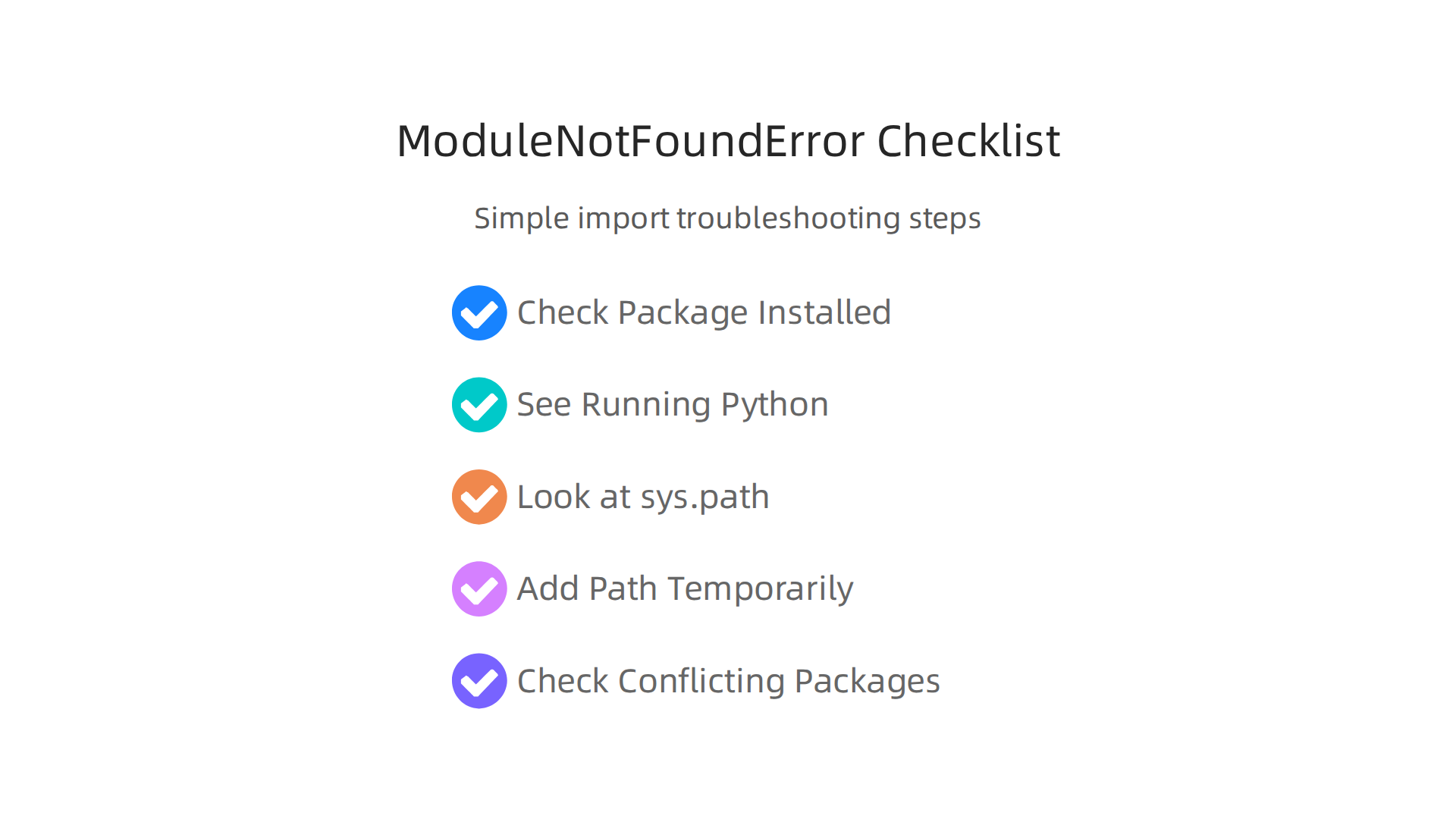
When you get a ModuleNotFoundError or similar issues, don’t worry. Here’s a simple checklist to help you find out what’s wrong:

-
Check if the package is truly installed:
Open your terminal and type:pip show [module_name]Replace
[module_name]with the actual name of the module you’re trying to import (likenumpyorpandas). If it’s installed, you’ll see information about it. If not, you’ll get a message saying it’s not found. If it’s not installed, usepip install [module_name]. -
See which Python you are running:
Sometimes, you think you’re using one Python, but your computer is actually using another. Type these commands in your terminal:which python(macOS/Linux)where python(Windows)python -c "import sys; print(sys.executable)"(Works everywhere)
This will show you the exact location of the Python program being used. If you expect to be in a virtual environment, make sure this path points inside that environment. For example, if you’re building production ML systems, knowing your exact Python environment is key to reliability reliably run Python code in production for machine learning systems.
-
Look at Python’s search paths (
sys.path):
As we talked about,sys.pathis a list of folders Python checks for modules. You can see this list by running:import sys for p in sys.path: print(p)Does the folder where your missing module lives appear in this list? Python searches these paths in order, and the first match is used Debugging a Python import failure (ModuleNotFoundError). If your module is in a custom location, Python won’t find it unless that path is included How to Fix The Module Not Found Error? – C# Corner.
-
Add a path temporarily (if needed):
If your custom module isn’t found, you can tell Python to look in an extra folder for the current session. Inside your Python script or interactive session, you can do this:import sys sys.path.append('/path/to/your/custom/directory') # Now try importing your moduleThis helps for quick tests but is not a permanent fix.
-
Check for conflicting packages or versions:
Sometimes you have two different versions of the same package installed in different places. This can confuse Python. Tools likepip freezecan show you all installed packages and their versions in your active environment. If you’re building a robust Python stack for data science, managing package versions is a critical skill master your Python stack for data science in 2026.
By following these steps, you can usually figure out why Python is having trouble finding your code and get your machine learning scripts back on track. Remember, a clean python path and well-managed environments are fundamental to smooth coding.
A clean python path and well-managed environments are super important for smooth coding. This is even more true in machine learning projects, where being able to get the exact same results every time is key. This is called reproducibility. It means that if you run your code today, you should get the same outcome as someone else running it tomorrow, or even a year from now, no matter their setup.
Making ML Projects Repeatable
Reproducibility is like having a recipe that always works. For machine learning, it means your models train the same way and give the same results every time.

This needs stable python path settings and careful management of all the software your project uses.
To make sure your projects are repeatable, we use special tools and follow best practices:
-
Use Virtual Environments for Each Project:
Imagine each project having its own box of Python tools. This is what a virtual environment does. It creates an isolated space where your project’s specific Python version and packages live. This stops conflicts where one project needs an older version of a tool and another needs a newer one. Using tools likevenv(which comes with Python) orcondahelps create these isolated spaces Python Virtual Environments – Research Computing Resources. When you start a new project, it’s a good idea to create a fresh environment just for it virtual environments | Python Best Practices. You can even store your environment files in a hidden folder like.venvinside your project for easy management PYTHON ENVIRONMENTS & CONTAINER – TU Freiberg. This helps keep your main Python installation clean and ensures that yourpython pathpoints to the correct, isolated packages. -
Pin Your Dependencies:
When you install packages, they often rely on other packages. These are called dependencies. To ensure reproducibility, you need to "pin" or lock the exact versions of all these packages.requirements.txt: The simplest way is to list all your direct project dependencies in arequirements.txtfile. You can create this file usingpip freeze > requirements.txt.- Lockfiles (pip-tools, conda-lock): For more robust control, tools like
pip-toolsorconda-lockcan create "lockfiles." These files list every single package and its exact version needed, not just your direct dependencies but also all their sub-dependencies. This ensures that when someone installs your project, they get the precise set of software you used, down to the smallest detail. This is very important for building reliable machine learning systems in production environments.
-
Share Consistent Environments:
With pinned dependencies and virtual environments, sharing your project with others becomes much easier.- Team Members: When you share your code, you also share the
requirements.txtor lockfile. Other team members can then use these files to create an identical environment on their computers. This means everyone is working with the same setup, reducing "it works on my machine!" problems. - CI Runners: Continuous Integration (CI) systems are automated tools that test your code every time you make changes. By giving CI runners your pinned environment, you ensure tests are always run in the same conditions. This helps catch bugs faster and guarantees that your model training results are consistent.
- Docker Containers: For even higher levels of consistency, especially for deployment of machine learning models, people use Docker. Docker packages your code, its environment, and even the operating system into a single unit called a container. You can set the
python pathright inside your Dockerfile, which tells Python exactly where to look for modules within the container How to Add a Path to PYTHONPATH in Dockerfile: Fix Missing …. While Docker helps a lot, remember that simply using Docker doesn’t guarantee reproducibility on its own; you still need to manage your dependencies well inside it Docker Does Not Guarantee Reproducibility.
- Team Members: When you share your code, you also share the
By following these best practices, you can make sure your machine learning projects are reliable and easy to share. It helps everyone understand how your model works and confirms that its results are trustworthy. If you’re looking to enhance your overall machine learning development, consider reading our guide on Optimize Your Machine Learning Workflow To Cut Bottlenecks And Speed Up Model Delivery.
Staying updated on all the new tools and changes in AI and machine learning can be hard. For deep daily insights, you might like The AI Newsletter Worth Reading. It provides clear updates that help you stay ahead.
When you move your machine learning project from your computer to a live system, like a website service or a phone app, this is called deployment. In these live settings, using tools like Docker and Continuous Integration/Continuous Delivery (CI/CD) changes how you think about your python path.
Getting Your ML Services Ready for Action
For machine learning models to work correctly in a production setting, they need the right software environment. This means ensuring that Python can find all the code and libraries it needs. If Python cannot find a module, you will see a common error called ModuleNotFoundError. This error happens when the python path (which is a list of places Python looks for modules, also known as sys.path) doesn’t include the folder where your module lives. This is a common problem in production if paths are not set properly How to Fix The Module Not Found Error – Python.
Here’s how Docker and CI/CD help with python path and other important details:
Docker for Consistent Environments
Docker helps you package your whole project and its environment into one neat box called a container. This container includes everything your machine learning model needs to run, like the Python version and all its libraries. When you deploy this container, you know it will run the same way every time, no matter where it is.
-
Setting the
python pathin Docker: Inside a Docker container, you need to tell Python where to find your custom code. You can do this by setting thePYTHONPATHenvironment variable in your Dockerfile. This tells Python to add certain folders to its search list (sys.path). For example, you can add your project’s main folder or a specificsrcfolder toPYTHONPATHTop 4 Ways to Set PYTHONPATH in a Dockerfile. This makes sure that Python can always find your important project files, even if they are not in the standard places. -
Explicit Paths and Entrypoints: When you start your machine learning service in a Docker container, you usually use a clear command, sometimes called an "entrypoint." This command tells the container exactly how to start your Python program. Making sure this entrypoint is correct and that it activates the right Python interpreter (the program that runs your code) and uses the right
python pathis very important for things to work smoothly.
CI/CD for Smooth Updates
CI/CD stands for Continuous Integration and Continuous Delivery. These are practices that help teams build, test, and deploy their code automatically. For machine learning, CI/CD helps ensure that when you update your model, the new version gets deployed with the correct python path settings every time.
-
Consistent Interpreter and Library Paths: CI/CD pipelines use the same Docker containers and setup instructions. This means that every time new code is deployed, the Python interpreter and all the installed libraries are exactly the same. This stops unexpected errors from popping up in production. You can think of it as using a very strict checklist to make sure everything is perfect before your model goes live. Building reliable machine learning systems depends on this careful setup.
-
Shared Volumes for Data: Sometimes, your machine learning model needs to access large files, like trained model weights or data, that are stored outside the container. This is where "shared volumes" come in. They allow your Docker container to see and use files from the computer it’s running on. You need to make sure the paths to these shared volumes are correctly set up, so your model can find its data without issues.
Managing the python path carefully in deployment ensures that your machine learning services run correctly and reliably. This attention to detail is key for successful machine learning operations in 2026. If you’re looking to dive deeper into these topics, consider exploring how to reliably run python code in production for machine learning systems. For broader insights into making sure your AI projects are well-managed, you might find our article on the AI development roadmap for 2026 research mlops and governance helpful.
Summary
This article explains why the Python path (the combination of your OS PATH, PYTHONPATH, and Python’s internal sys.path) is critical for machine learning engineers and teams. It describes how Python finds modules, the difference between the interpreter location and module search paths, and how environment variables change that behavior. You’ll learn practical steps to inspect and set paths on macOS, Linux, and Windows, plus when to use PYTHONPATH or leave it alone. The guide compares virtual environments (venv/virtualenv) and conda, shows how to troubleshoot common import errors like ModuleNotFoundError, and offers reproducibility and deployment advice using lockfiles, Docker, and CI/CD. After reading, you’ll know how to manage isolated project environments, fix import issues faster, and prepare ML code for reliable team collaboration and production deployment.